
Window Peeper AI vs CapCut Template
Compare a one-photo Window Peeper AI video generator with a Window Peeper CapCut template and choose the right workflow.
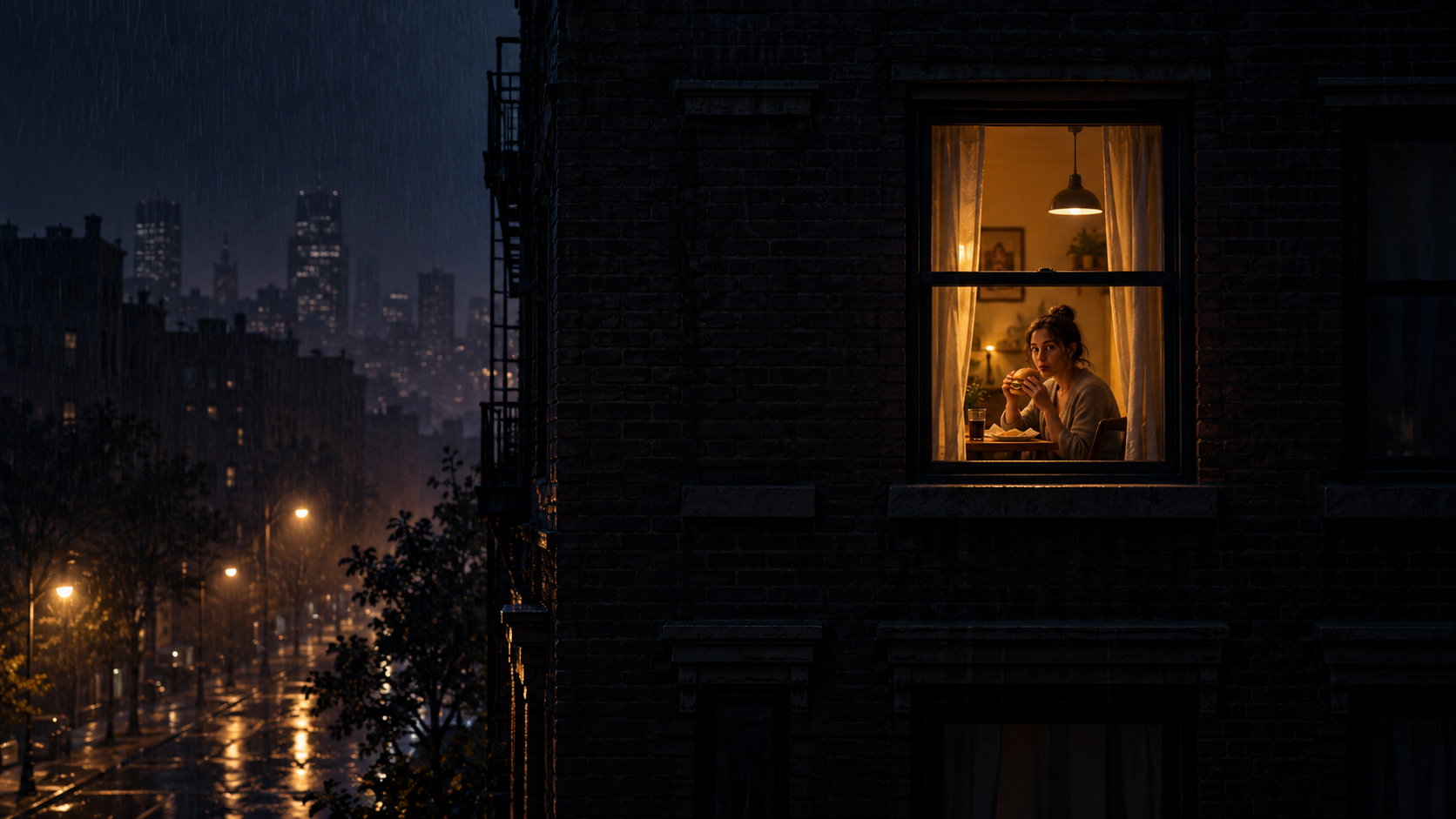
There are two common ways to recreate the Window Peeper trend: start with an editable CapCut template, or use a Window Peeper AI video generator that begins with one photo. Both can lead to a recognizable post, but they suit different creators.
The short answer is simple: choose CapCut when you want hands-on editing control; choose Window Peeper AI when you want the shortest path from a photo to the finished visual idea.
Side-by-side comparison
| Question | Window Peeper AI | CapCut template |
|---|---|---|
| Starting material | One photo | Replacement clips or photos, depending on the template |
| Main workflow | Upload and generate | Open template, replace media, adjust, export |
| Camera move | Created as part of the effect | Defined by the template and editable in CapCut |
| Manual control | Focused and minimal | More control over cuts, text, effects, and audio |
| Best for | Fast one-photo results | Creators who want to customize the edit |
When Window Peeper AI makes more sense
Use the AI route when the main goal is to see your photo inside the complete Window Peeper scene. You do not need to understand an editing timeline or match several shots. The exterior, window zoom, and final reveal are treated as one creative effect.
This route is also useful on a phone when you already have the right portrait in your camera roll and want to move directly to the result.
When a CapCut template makes more sense
Use a Window Peeper CapCut template when you enjoy editing or need precise control. A template can be easier to personalize with your own captions, sound choices, extra reaction cuts, or timing changes.
The tradeoff is that you may need to replace multiple assets, inspect the crop in each slot, and make sure the final beat still lands. The workflow is not difficult, but it asks for more decisions.
Can you make the Window Peeper trend without CapCut?
Yes. A one-photo AI generator is the direct alternative. Choose a source image, start the Window Peeper effect, and review the complete video. You can still add platform music or a caption afterward if you want.
This is different from claiming that AI replaces every editor. CapCut remains the better choice for custom cuts. The AI generator simply removes those steps when you want this specific visual result.
Which route gives the better result?
The starting material matters more than the label on the tool. A clear face, enough space around the subject, and a natural expression help either workflow. A tiny screenshot or a crop that cuts tightly around the face can limit both.
Choose based on the work you want to do:
- I want one photo to become the full effect: use Window Peeper AI.
- I want to replace clips and customize every beat: use a CapCut template.
- I want to add custom edits after generation: create the base in Window Peeper AI, then finish it in your editor.
For stronger source material, read the Window Peeper photo tips. For a step-by-step one-photo workflow, follow the Window Peeper video guide.
Keep exploring
Related Window Peeper guides
Window Peeper Filter or AI Generator?
Learn what people mean by the Window Peeper filter and how a one-photo AI video generator creates the trend differently.
Read articleHow-toHow to Make a Window Peeper Video From One Photo
A simple guide to making the Window Peeper trend with one photo, including photo choice, framing, and posting tips.
Read articlePut the guide into practice
Make your Window Peeper video.
Upload one photo and create the complete 15-second window-zoom moment.